
Sciget App
Step 1: Download and install
Section titled “Step 1: Download and install”Download the Sciget App for your operating system, then follow the install instructions below.
Download:
Install:
Double-click the downloaded .dmg file and drag ScigetApp into your Applications folder. To open it, right-click ScigetApp.app and select “Open”.
Download:
Install:
Double-click the downloaded .exe file. Windows will show an “Unknown publisher” warning because the installer is not code-signed. This is expected: the installer is an official release from the scigetapp GitHub repository. Click “Yes” to proceed, then accept the licence agreement and click “Finish”.
Download:
| Distribution | x64 | arm64 |
|---|---|---|
| Debian / Ubuntu | .deb (x64) | .deb (arm64) |
| Fedora / RHEL / SUSE | .rpm (x64) | .rpm (arm64) |
Install:
Replace <arch> in the following commands with the architecture of the file you downloaded (x64 or arm64).
# Debian / Ubuntusudo apt install -f ./ScigetApp-Setup-Debian-<arch>.deb
# Fedora / RHEL / SUSEsudo rpm -i ScigetApp-Setup-Fedora-<arch>.rpm
Minimum system requirements
Section titled “Minimum system requirements”- At least 5 GB free disk space for the Scidesktop base image
- A container engine or the TinyRange engine (see Step 2 below)
Step 2: Set up an engine
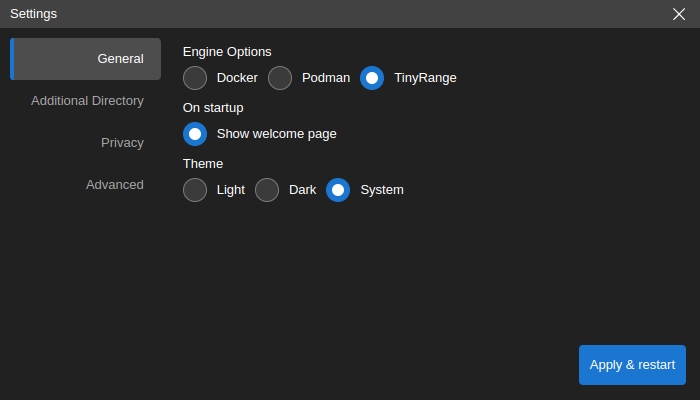
Section titled “Step 2: Set up an engine”The Sciget App needs an engine to run. Docker is recommended, Podman is also supported, and TinyRange is available for systems without admin/root access.
Requires: admin/root access on your machine.
If you already have Docker installed, skip to Step 3. Otherwise, install Docker:
Verify your installation:
docker --versiondocker run hello-worldApple silicon users: enable Rosetta support in Docker Desktop settings for best performance.
Requires: admin/root access on your machine.
Podman is a drop-in replacement for Docker. Install it using your system’s package manager or from podman.io.
After installing Podman, configure the Sciget App to use it before starting a local session:
- Open the Sciget App’s Settings.
- Select General in the sidebar.
- Under Engine Options, select Podman.
- Click Apply & restart.
Does not require admin/root access or Docker/Podman.
TinyRange is included with the Sciget App. No additional installation is needed on Windows or Linux.
macOS only: install QEMU using Homebrew:
brew install qemuVerify the installation:
qemu-system-aarch64 --versionTo use TinyRange, select it under Engine Options in the Sciget App settings.
Step 3: Launch the app
Section titled “Step 3: Launch the app”Open the Sciget App from your operating system’s application menu, or run scigetapp from the command line.
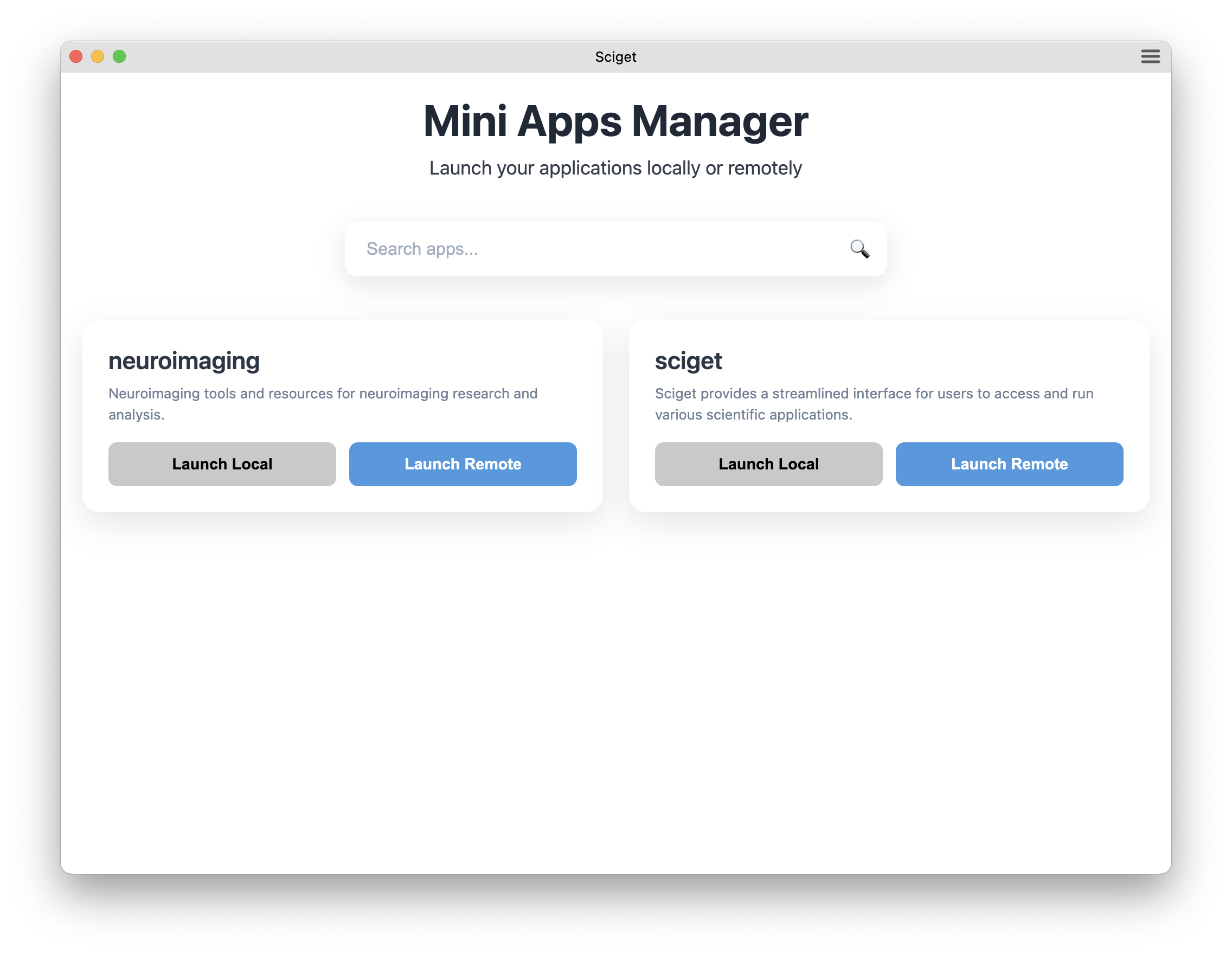
On the Welcome Page you have two options:
- Launch Local creates a new session on your machine.
- Launch Remote connects to an existing Sciget server running elsewhere.
Local sessions
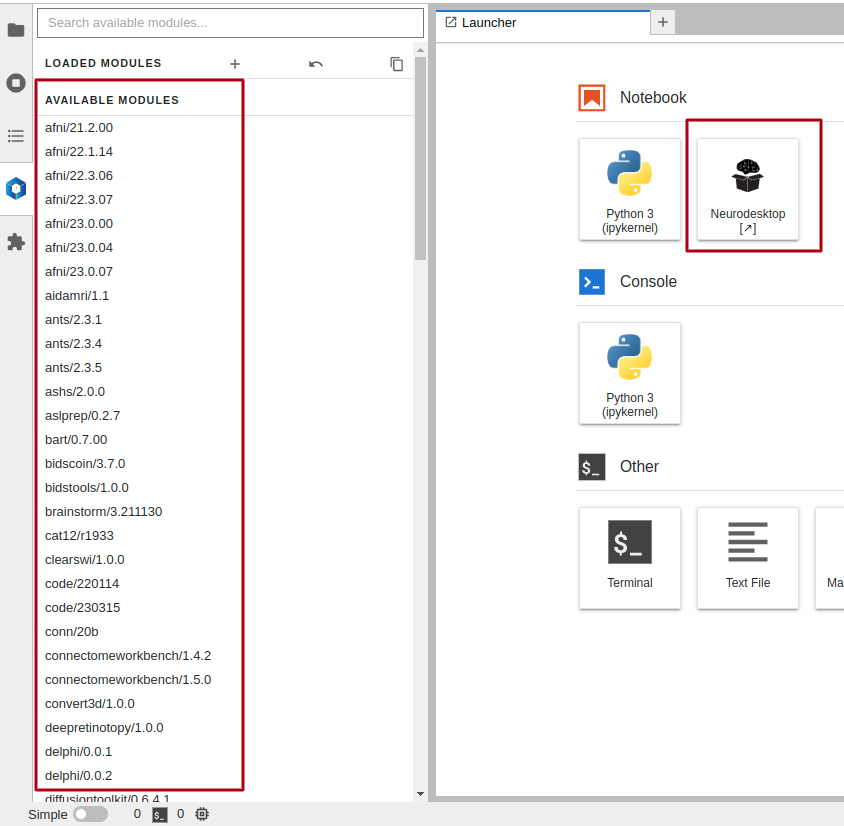
Section titled “Local sessions”Click “Launch Local” on the mini app you want to start. This opens a JupyterLab interface.
Click the scidesktop icon to open the full Linux desktop. Choose Desktop RDP (recommended) or Desktop VNC. The app will load into a full Linux desktop environment with Software-Applications on the desktop to choose from.
Remote sessions
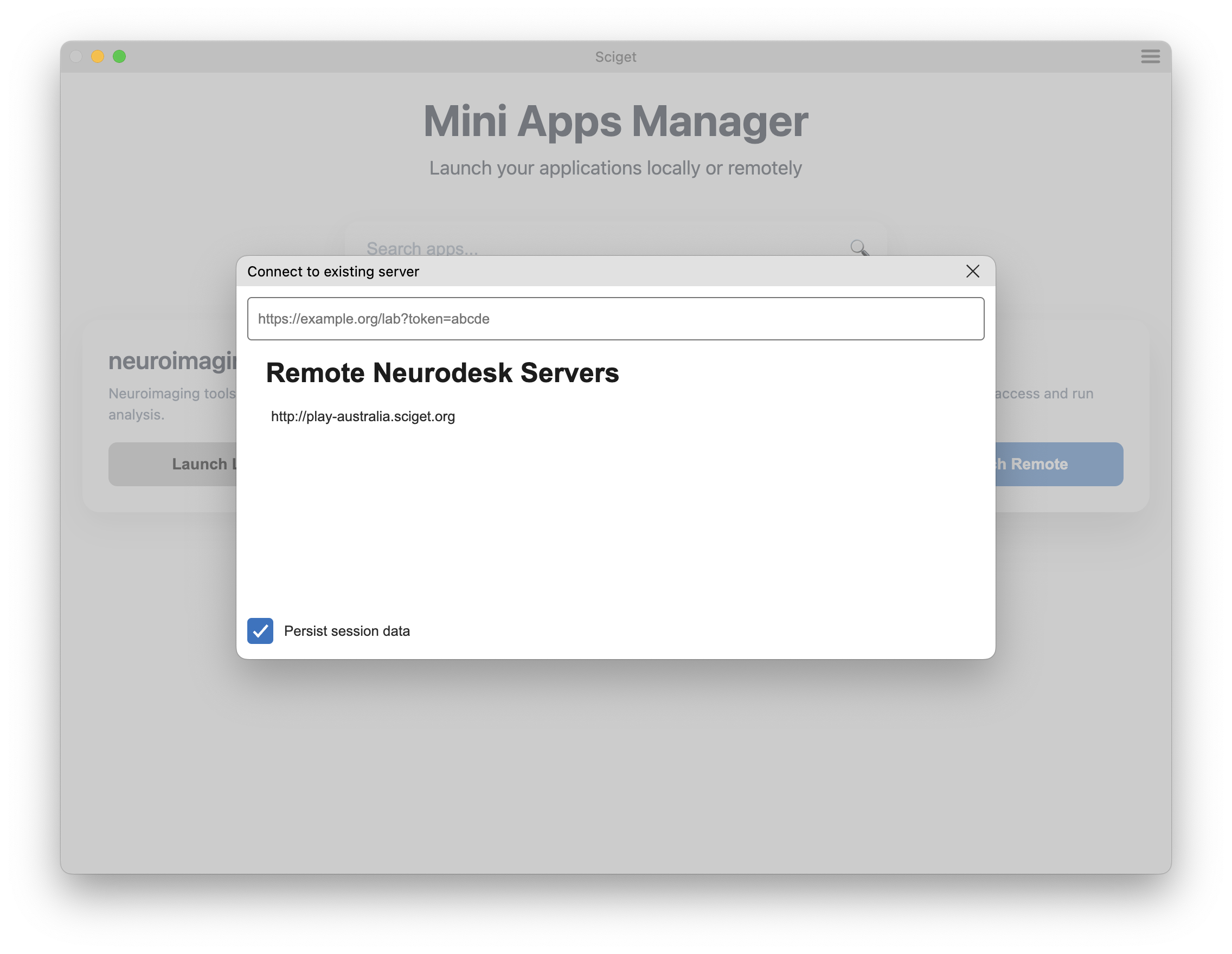
Section titled “Remote sessions”Click “Launch Remote” to connect to a server running elsewhere.
Select a server from the list, or enter the URL of the application server. If the server requires a token for authentication, include it as a query parameter of the URL (/lab?token=<token-value>). Press Enter to connect.
Use your GitHub credentials to log in, then click Start to launch Scidesktop.
Data storage
Section titled “Data storage”Mini apps store data in ~/<miniapp>-storage on Linux and macOS, or C:/<miniapp>-storage on Windows by default.
Add a custom data directory
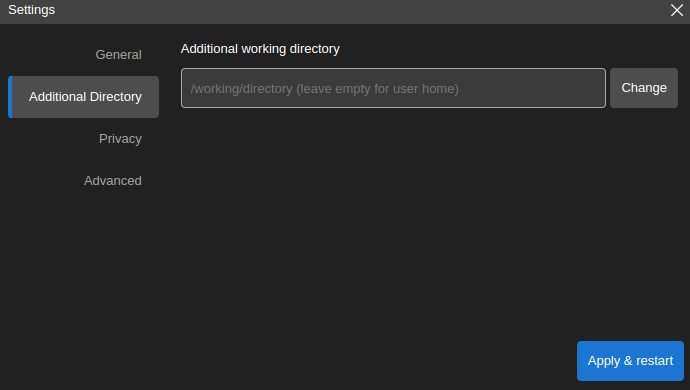
Section titled “Add a custom data directory”In Settings, select “Additional Directory” in the sidebar, click “Change” to choose a local directory, then click “Apply & restart”. The directory will appear at /home/jovyan/data inside the app.
Privacy settings
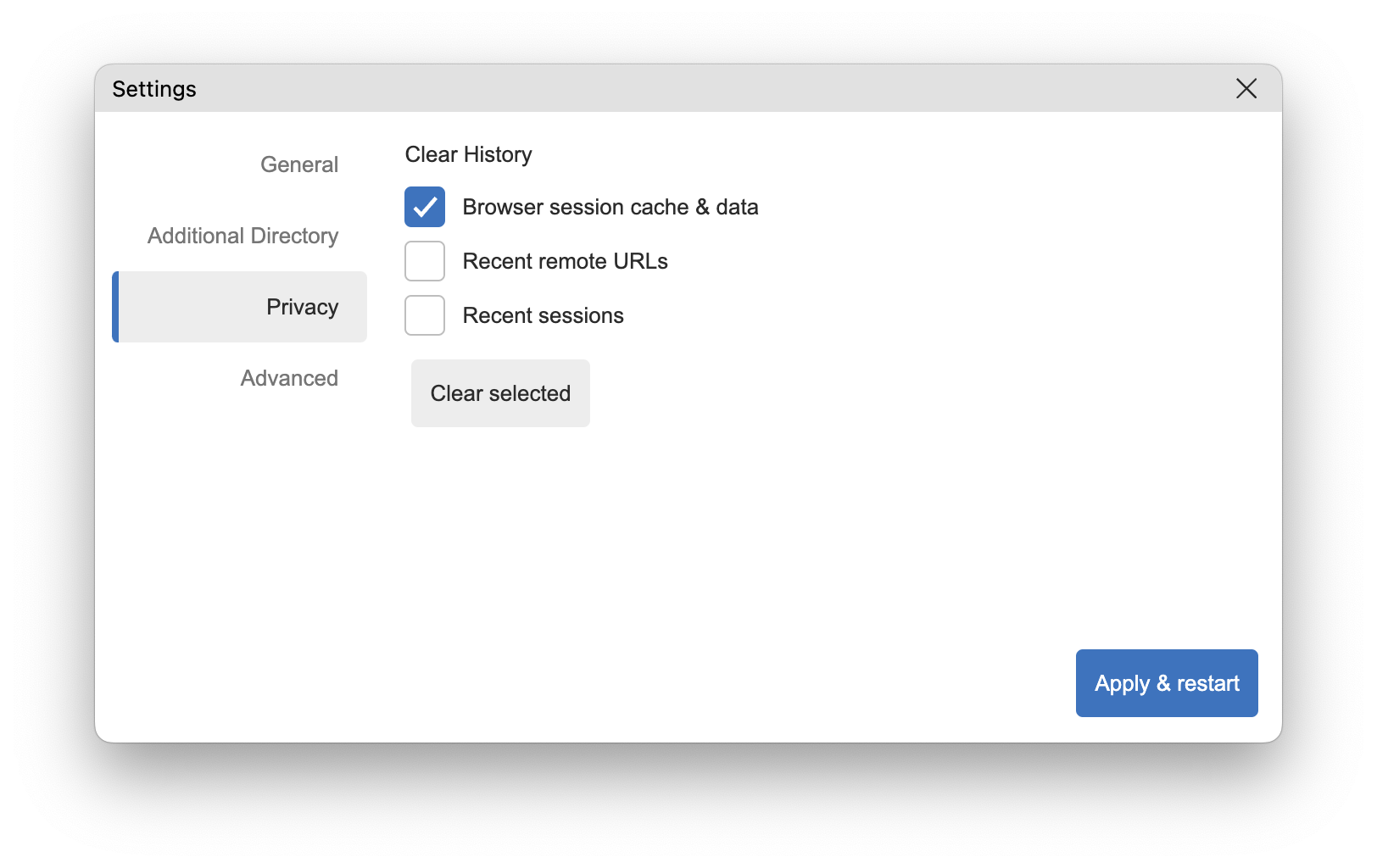
Section titled “Privacy settings”You can delete stored session data manually at any time using the Clear History option in the Privacy tab of the Settings dialog.
Troubleshooting
Section titled “Troubleshooting”/var/run/docker.sock: connect: permission denied
Section titled “/var/run/docker.sock: connect: permission denied”This means Docker is not correctly set up yet. Run:
sudo groupadd dockersudo usermod -aG docker $USERnewgrp docker
sudo chown root:docker /var/run/docker.socksudo chmod 666 /var/run/docker.sock
FATAL:setuid_sandbox_host.cc(158)
Section titled “FATAL:setuid_sandbox_host.cc(158)”If you see the error FATAL:setuid_sandbox_host.cc(158)] The SUID sandbox helper binary was found, but is not configured correctly..., this is caused by a recent change in Ubuntu 24.04.
A temporary workaround: create the file /etc/apparmor.d/scigetapp with this content:
# This profile allows everything and only exists to give the# application a name instead of having the label "unconfined"
abi <abi/4.0>,include <tunables/global>
profile scigetapp "/opt/ScigetApp/scigetapp" flags=(unconfined) {  userns,
  # Site-specific additions and overrides. See local/README for details.  include if exists <local/scigetapp>}
Then restart your computer and try to start the Sciget App again.
Uninstalling Sciget App
Section titled “Uninstalling Sciget App”Find ScigetApp.app in Finder (in /Applications or ~/Applications) and move to Trash using CMD + Delete. Then clean up:
rm -rf ~/Library/scigetapp # remove application cacherm -rf ~/Library/Application\ Support/scigetapp # remove user dataGo to Windows Apps & Features via Start Menu → Settings → Apps and uninstall Sciget App.
To remove the application cache, delete C:\Users\<username>\AppData\Roaming\scigetapp. The AppData directory is hidden — activate hidden items in Windows Explorer under View → Show → Hidden Items.
# Debian / Ubuntusudo apt-get purge scigetapp # remove applicationsudo rm /usr/bin/scigetapp # remove command symlinkrm -rf ~/.config/scigetapp # remove application cache
# Fedora / RHEL / SUSEsudo rpm -e scigetapp # remove applicationsudo rm /usr/bin/scigetapp # remove command symlinkrm -rf ~/.config/scigetapp # remove application cache